1. Updating Ubuntu Desktop from the GUI
After logging into the Ubuntu Desktop virtual machine, open the Software Updater by
clicking the Ubuntu button in the top-left corner (or pressing the Super key), typing Software
Updater in the search bar, and selecting the application when it appears. The Software Updater
will automatically query configured APT repositories to check for available updates, which may
take several moments depending on network speed and repository synchronization. Available
updates are typically categorized as security updates, recommended updates, and occasionally
unsupported updates; security and recommended updates should almost always be installed
because they address known vulnerabilities, patch bugs, improve performance, and update core
libraries. By default, all updates are selected, and users can review individual package details if
needed; unless there are known compatibility concerns, installing all updates is best practice.
Click Install Now, authenticate with your user password if prompted, and allow the system to
download and apply updates without interruption, as stopping the process can corrupt packages
or destabilize the system. A progress indicator will display installation status, and a screenshot
should be taken upon confirmation of completion. If prompted, restart the VM to apply kernel or
system-level updates, then optionally relaunch the Software Updater to verify the system reports
“Your system is up to date.”
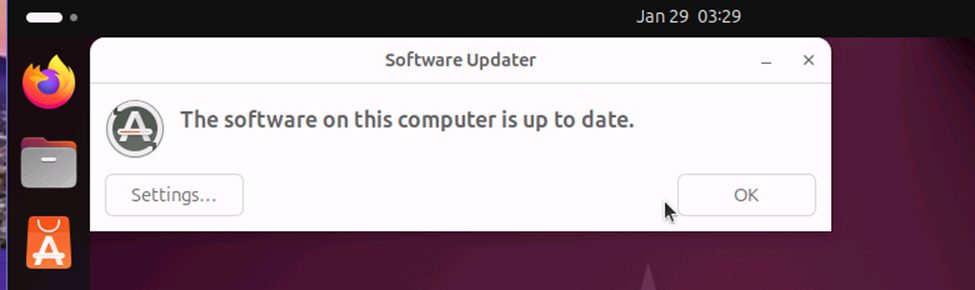
During this process, security patches close known CVEs, kernel updates replace
vulnerable or unstable modules, and library upgrades ensure compatibility with dependent
applications. As described by Nemeth et al. (2017), installing updates consistently reduces attack
surface, prevents privilege-escalation exploits, and maintains system integrity, especially critical
in virtual machines that may share hosts or networks with other systems. Authentication is
required because updates modify protected system directories, reinforcing least-privilege
controls. Reboots are sometimes necessary to load updated kernels and system services into
memory, ensuring patches are actually enforced. Verifying update completion confirms package
consistency and prevents dependency drift, which can cause application failures. Regular updates
are essential for operational stability, regulatory compliance, and maintaining a secure,
supportable Linux environment.
2. Updating the Ubuntu Server from the Command Line
Update the list of packages: # sudo apt update
Running sudo apt update on the Ubuntu Server refreshes the local package index
by synchronizing it with configured repositories, ensuring the system is aware of the latest
available versions and security patches.
Upgrade the packages:# sudo apt upgrade
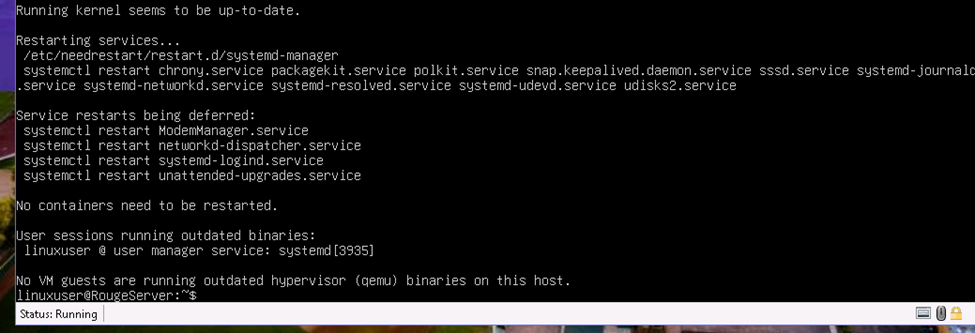
Executing sudo apt upgrade then safely replaces installed packages with newer,
dependency-compatible versions, prompting for confirmation to prevent unintended system
changes. This process applies critical security fixes, stability improvements, and performance
updates while preserving system configuration. Interrupting upgrades can corrupt packages or
services, so completion must be verified before rebooting. Rebooting the server is essential when kernel or core service updates are applied, ensuring updated components are loaded into memory
and fully enforced for secure, reliable server operation.
3. Automating Updates for the Ubuntu Server
# sudo apt install unattended-upgrades
Installing unattended-upgrades configures the Ubuntu server to automatically download
and apply critical security patches using the APT package management system without requiring
manual intervention. Enabling and starting the unattended-upgrade.timer activates a
systemd timer that runs on a scheduled basis, typically daily, to check trusted repositories for
security updates. This mechanism reduces the risk of exploitation by ensuring vulnerabilities are
patched promptly, even when administrators are not logged in.

# sudo sudo systemctl enable unattended-upgrade.timer
# sudo systemctl start unattended-upgrade.timer
These automates the security updates, which is especially important for servers, as it
maintains continuous protection, improves compliance with security policies, and minimizes
administrative overhead while preserving system stability.
Why a System Administrator Should Review the List of Packages after apt update
A system administrator should review the list of packages after running apt update
because this step reveals what changes the package manager is preparing to make and whether
those changes align with system, security, and operational requirements. The apt update
refreshes the local package index from all configured repositories, including official Ubuntu
archives, security repositories, third-party PPAs, and internal mirrors (Frobbins, 2023).
Reviewing the output allows the administrator to verify that repositories are reachable, trusted,
and returning expected metadata, and to immediately identify issues such as failed repository
signatures, deprecated sources, or unreachable mirrors.
From a security standpoint, reviewing the package list helps distinguish security updates
from feature or version changes. Some updates may introduce new dependencies, remove
obsolete packages, or modify core libraries such as glibc, openssl, or systemd, which can affect
running services. Administrators can assess whether updates might impact compatibility, uptime,
or compliance requirements before proceeding with apt upgrade (InterServer, 2025). This is
especially important on servers hosting critical services like databases or authentication systems,
where unexpected library changes can cause service interruptions.
Operationally, reviewing the output helps detect unintended repository changes, such as a
system pulling packages from testing or unsupported repositories, which could destabilize production environments (InterServer, 2025). It also allows administrators to plan maintenance
windows, confirm disk space requirements, and identify packages that may require post-upgrade
configuration or a system reboot. This review step enforces change control, reduces risk, and
ensures predictable, secure system behavior.
Key Risk and Mitigation in Managing Linux Patching
A key risk during patch implementation is service disruption caused by incompatible or
untested updates, particularly when patches modify shared libraries, kernels, or service
dependencies. Even security updates can introduce behavioral changes that may break
applications, interrupt authentication services, or require restarts, leading to unplanned downtime
in production environments. According to Zhang et al. (2021), system updates are one of the most disruptive yet unavoidable maintenance tasks, which, if untested and unverified, may result
in catastrophic failures and operational disruptions. The CrowdStrike incident of 2024 is a great
example, where a faulty Windows sensor configuration update resulted in the “blue screen of
death” (BSOD) that affected critical systems across the world, including airports, hospitals, and
manufacturing plants. Given that Linux-based systems dominate the global computing
infrastructure, especially servers and supercomputers (over 90%), such a disruption would be catastrophic to the global operations.
A single effective mitigation strategy is to test patches in a staging or non-production
environment that closely mirrors production before deployment. Validating updates against real
workloads and configurations helps administrators identify compatibility issues, performance
regressions, or required configuration changes in advance. This controlled testing reduces
operational risk, enables planned maintenance windows, and ensures that patches can be applied
confidently without compromising system availability or stability.
References
Frobbins. (2023, September 22). What does Sudo Apt Update on Linux do? mikefrobbins.com.
https://mikefrobbins.com/2023/09/22/what-does-sudo-apt-update-on-linux-do/
InterServer. (2025, September 1). How to View Recently Installed or Updated Packages in
Ubuntu Linux. InterServer.net | Linux and Commands.
https://www.interserver.net/tips/kb/view-installed-or-updated-package-history-ubuntu/
Nemeth, E., Snyder, G., Hein, T. R., Whaley, B., & Mackin, D. (2017). UNIX and Linux System
Administration Handbook (5th ed.). Addison-Wesley Professional. ISBN-13:
9780134277554.
Zhang, Y., Yang, J., Jin, Z., Sethi, U., Rodrigues, K., Lu, S., & Yuan, D. (2021). Understanding
and Detecting Software Upgrade Failures in Distributed Systems. In ACM SIGOPS 28th
Symposium on Operating Systems Principles (SOSP ’21), 116–131.
https://doi.org/10.1145/3477132.3483577